
Using the Editor Menus
The WebCommander Editor is where you build your website, and it’s loaded with features to help you make a professional and functional site. Inside the Editor, you’ll find a few menus that let you do various things to build and manage your site easily.
The Top Bar Menu
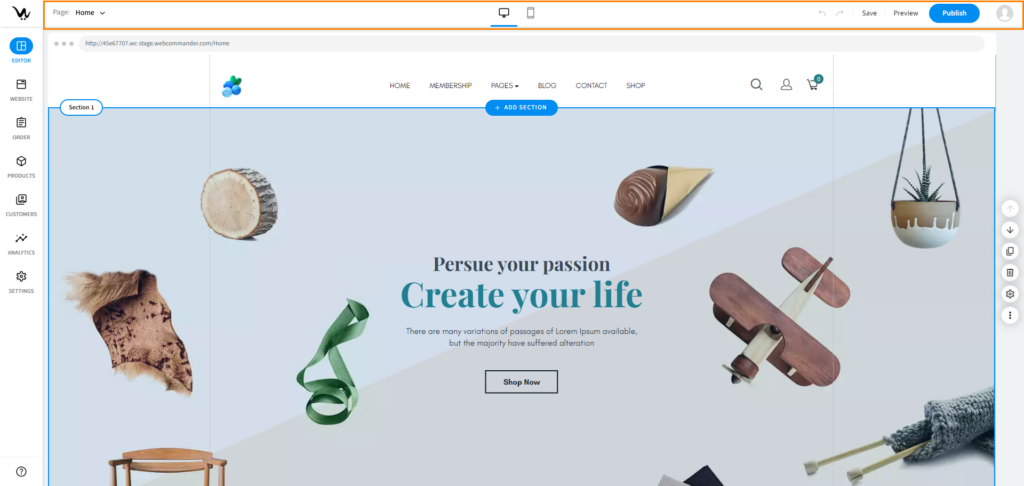
The menu bar at the top of the Editor provides essential tools and settings for seamless website editing. Here’s a breakdown from left to right:
- Page Drop-down: Use the drop-down menu to navigate between different pages on your website for editing.
- Desktop and Mobile Editors: Easily switch between the desktop and mobile Editors to ensure your site looks great on all devices.
- Undo: Revert your last action by clicking on the Undo button.
- Redo: Restore your last undone action with the Redo button.
- Save: Save your most recent changes using the Save button. Ensure your progress is preserved.
- Preview: Preview how your site will appear to visitors by clicking on the Preview button.
- Publish: Publish your entire site or specific changes with the Publish button. Make your updates live for the world to see.
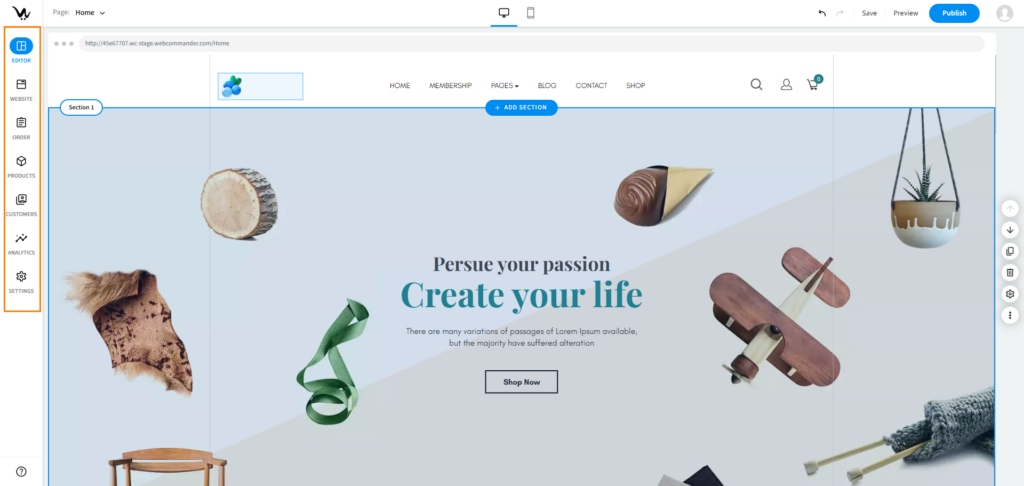
The left-side menu in the Editor is your hub for managing various aspects of your site. Here’s an overview of the features and options available:
- Editor: Customise the appearance and layout of your website using the Editor. Make visual changes to enhance the user experience.
- Website: Manage your site’s pages, themes, and blogs from this section. Configure the navigation menu to improve site navigation.
- Order: Handle orders and related tasks such as payment, shipment, and refunds. Efficiently manage your e-commerce transactions.
- Products: Manage your products, product categories, and product variations. Keep your inventory organised and easily accessible.
- Customer: Access customer management tools to handle individual customers and customer groups. Build and maintain strong customer relationships.
- Analytics: Review comprehensive analytics for your website’s performance. Gain insights into site activity and user engagement.
- Settings: Configure and customise your site’s settings from this section. Tailor your site to meet your specific needs.
This left menu provides a centralised location for all the essential tools and features you need to effectively manage and optimise your WebCommander website.
