
Shopping Cart Settings
This guide will walk you through configuring and managing the Shopping Cart Settings of your store. This feature provides flexibility to enable or disable various elements, ensuring a customized user experience.
Accessing Shopping Cart Settings
- Log in to your WebCommander admin panel.
- Navigate to Settings > Page Settings > Shopping Cart
Cart Page Configuration
This section manages the standard shopping cart page where customers review items before checkout.
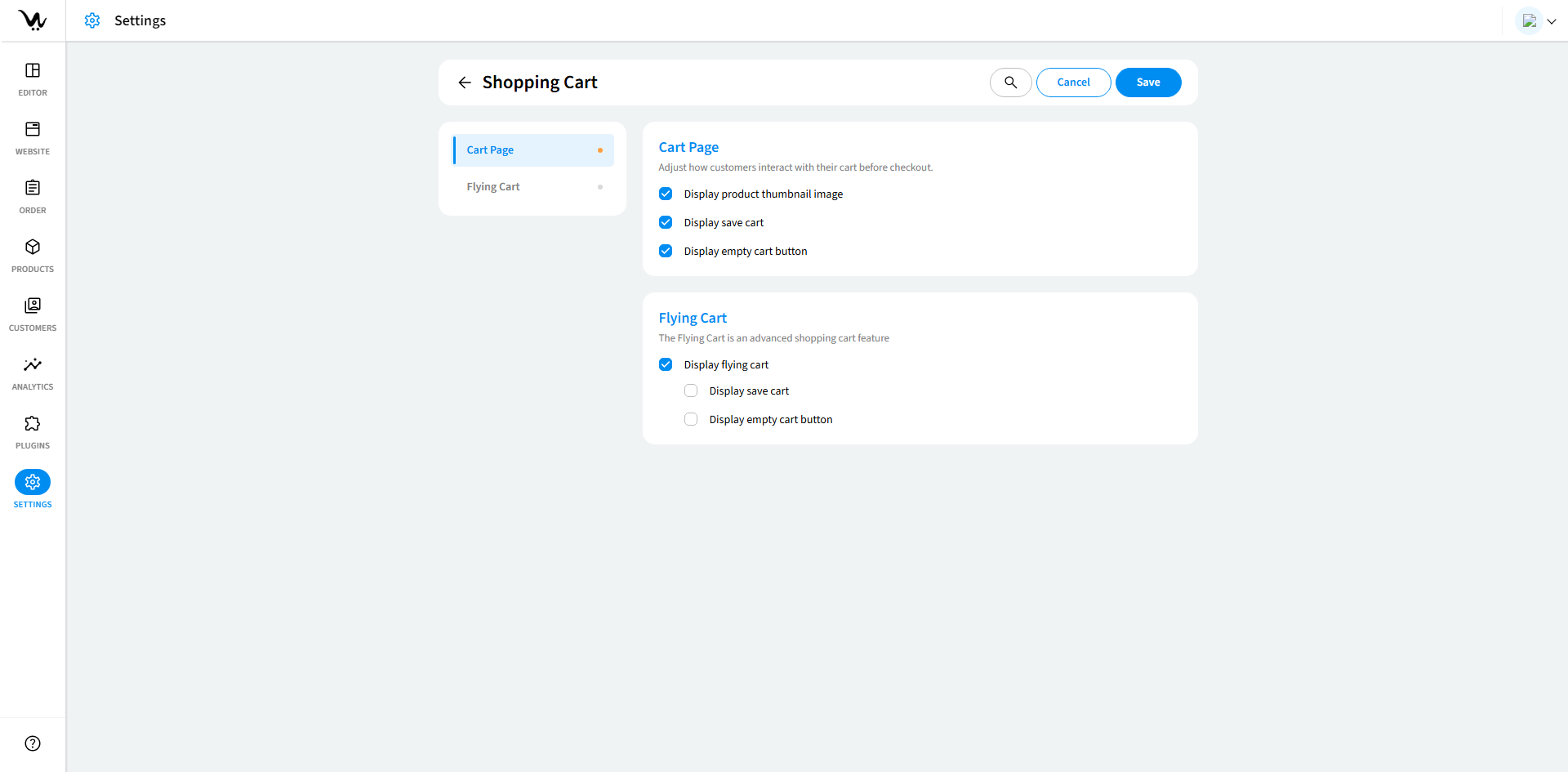
- Display Product Thumbnail Image: Enable the Display product thumbnail image option. Shows product images in the cart.
- Display Save Cart Button: Enable the Display save cart button option. Allows customers to save their cart for later.
- Display Empty Cart Button: Enable the Display empty cart button option. Allows customers to clear all items from the cart.
Flying Cart Configuration
This section configures the dynamic and interactive flying cart, which provides real-time updates as customers add products without leaving the page.
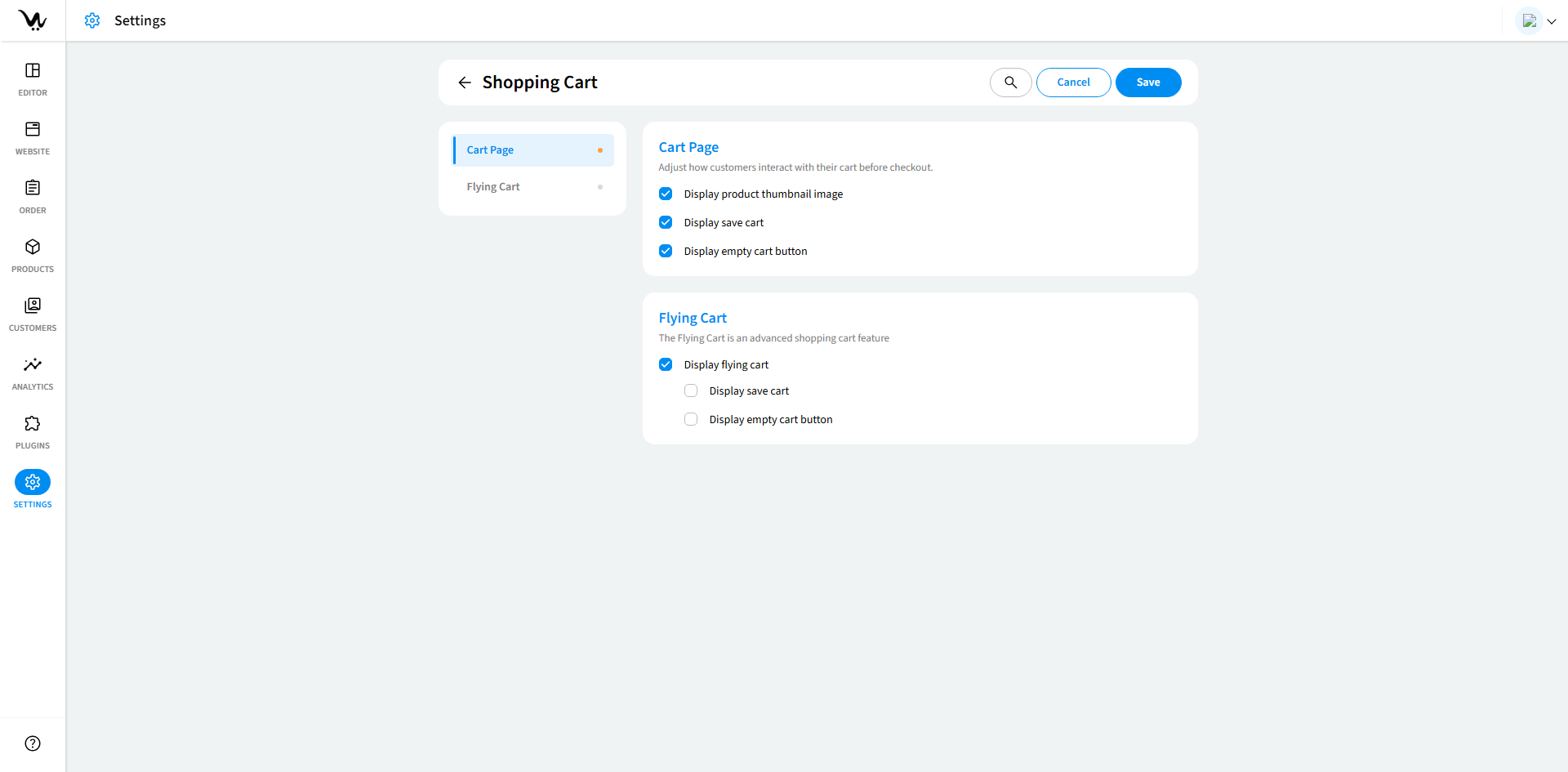
- Display Flying Cart: Enable the Display flying cart option. Activates the floating cart feature for quick, in-page cart interactions.
- Display Save Cart Button: Enable the Display save cart button option. Similar to the Cart Page, this allows customers to save their cart from the flying cart.
- Display Empty Cart Button: Enable the Display empty cart button option. Provides customers an option to clear their cart from the flying cart view.
Troubleshooting Your Shopping Cart Settings
-
What is the difference between the Cart Page and the Flying Cart?
Answer: The Cart Page is the standard shopping cart view where customers can review their items before checkout. The Flying Cart is an advanced, dynamic cart feature that allows customers to interact with their cart in real-time without leaving their current page. -
Can I enable both the Cart Page and Flying Cart simultaneously?
Answer: Yes, you can configure both options. Customers will see the Flying Cart by default for quick interactions, but they can also access the Cart Page for detailed reviews. -
How can I display product thumbnails in the cart?
Answer: Go to Cart Page settings and enable the option Display product thumbnail image. -
What happens if I disable the "Save Cart" button?
Answer: Customers won’t be able to save their cart for later use. This feature is useful if your store does not support multi-session shopping. -
Is it possible to disable the "Empty Cart" button?
Answer: Yes, you can toggle the Display empty cart button option in both the Cart Page and Flying Cart settings.
Best Practices
- Preview Settings: Always preview the cart settings before making them live to ensure a smooth user experience.
- Optimize Cart Features: Ensure that the Flying Cart is optimized for performance and does not slow down your website.
- Use the Save Cart Feature: Enabling the Save Cart button enhances the customer experience by allowing them to pick up their cart later.
