
Complete Guide to Text Personalisation in WebCommander
The Text personalisation feature in WebCommander allows users to customize predefined texts like button labels, messages, headers, and more to align with their brand or specific needs. This feature offers flexibility in personalizing the content displayed on the website, improving the overall user experience.
Accessing Text personalisation
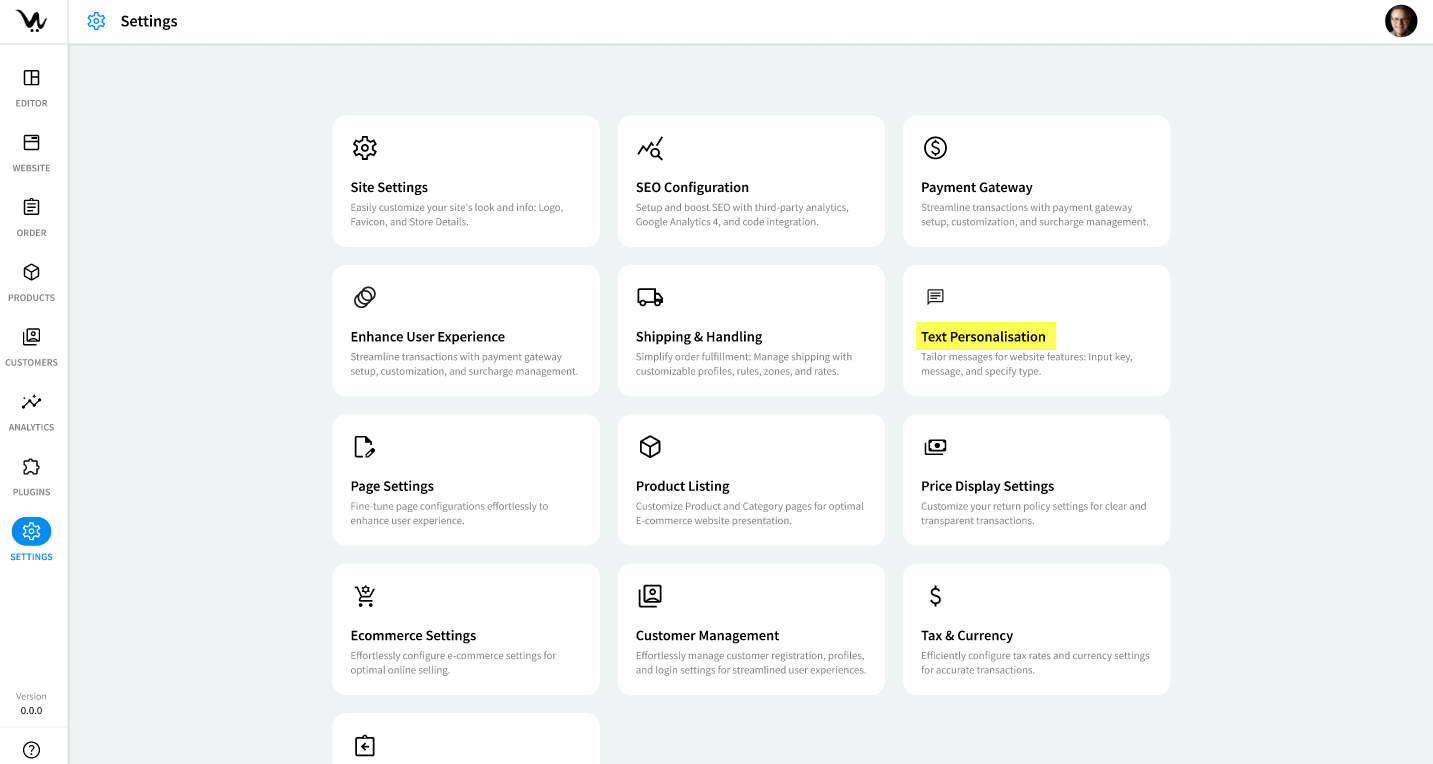
To access the Text personalisation feature:
- Log in to your WebCommander account.
- Navigate to Settings from the left menu.
- Select Text personalisation from the options.
Searching for Text
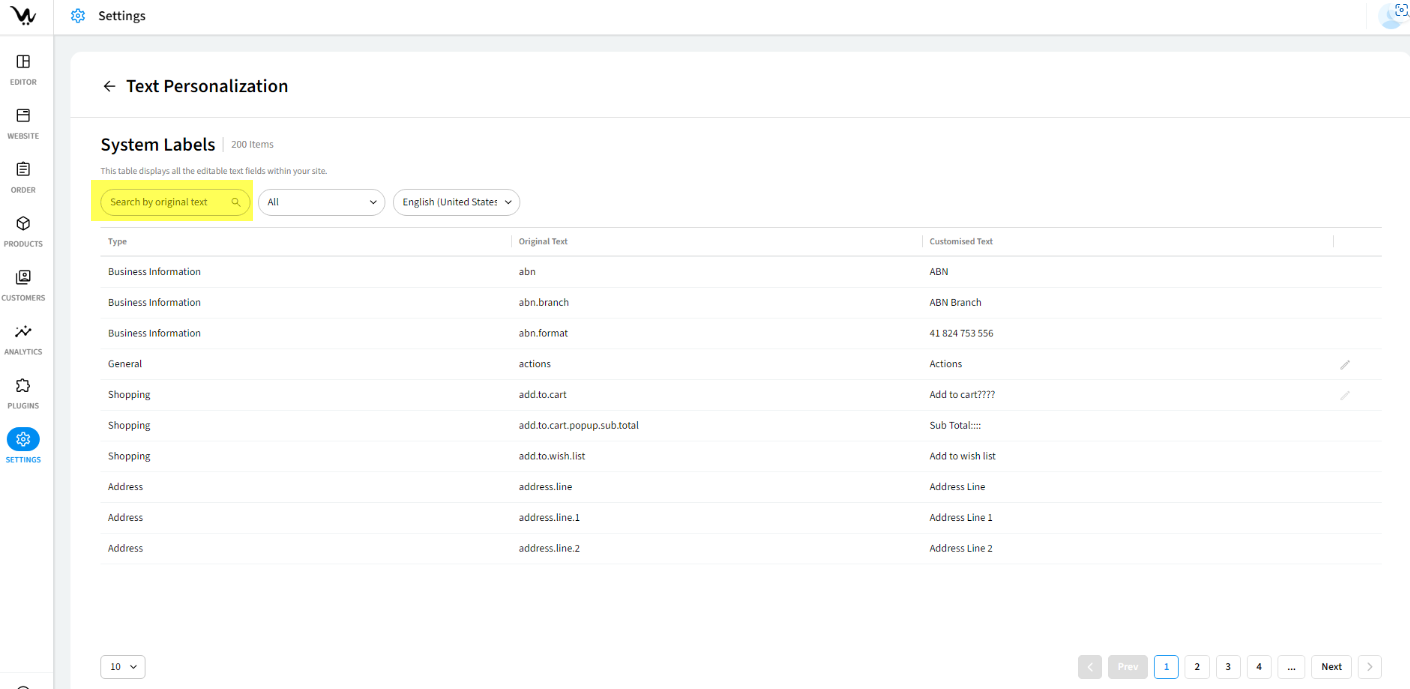
To search for original or customised text:
- Enter a search term (e.g., "add to cart") in the Search Bar.
- The search is case-insensitive, and you can search by:
- Group Name
- Original Text
- customised Text
Filtering by Group Name
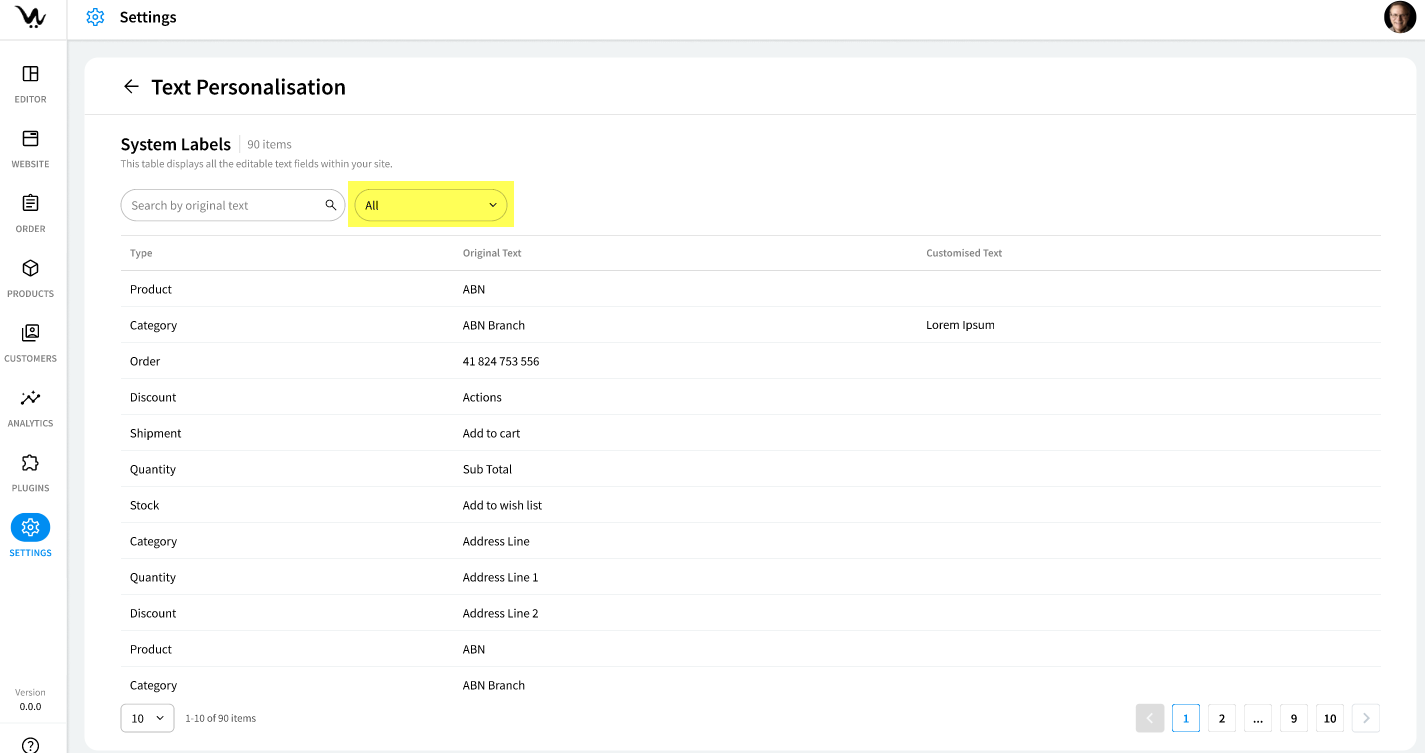
To filter search results by group name:
- Select a Group Name from the drop-down list beside the search bar.
- The default is All Groups, but you can choose any predefined group to narrow the search results.
Selecting Language Preference
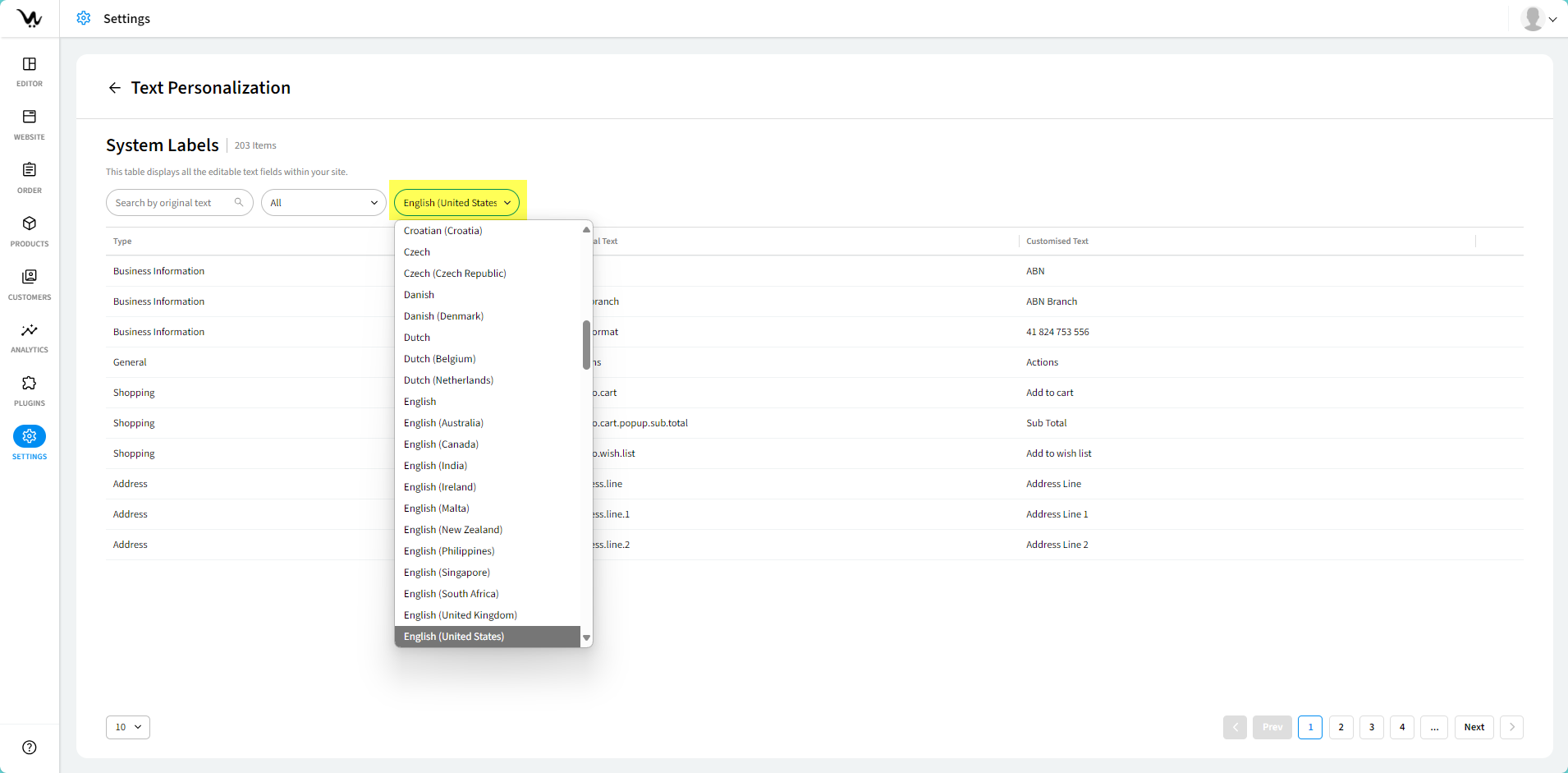
To set the language for viewing and customizing text:
- Select a language from the drop-down list beside the Group Name filter.
- The default language is English (United States), but you can choose a different language as needed.
Reviewing Original Text
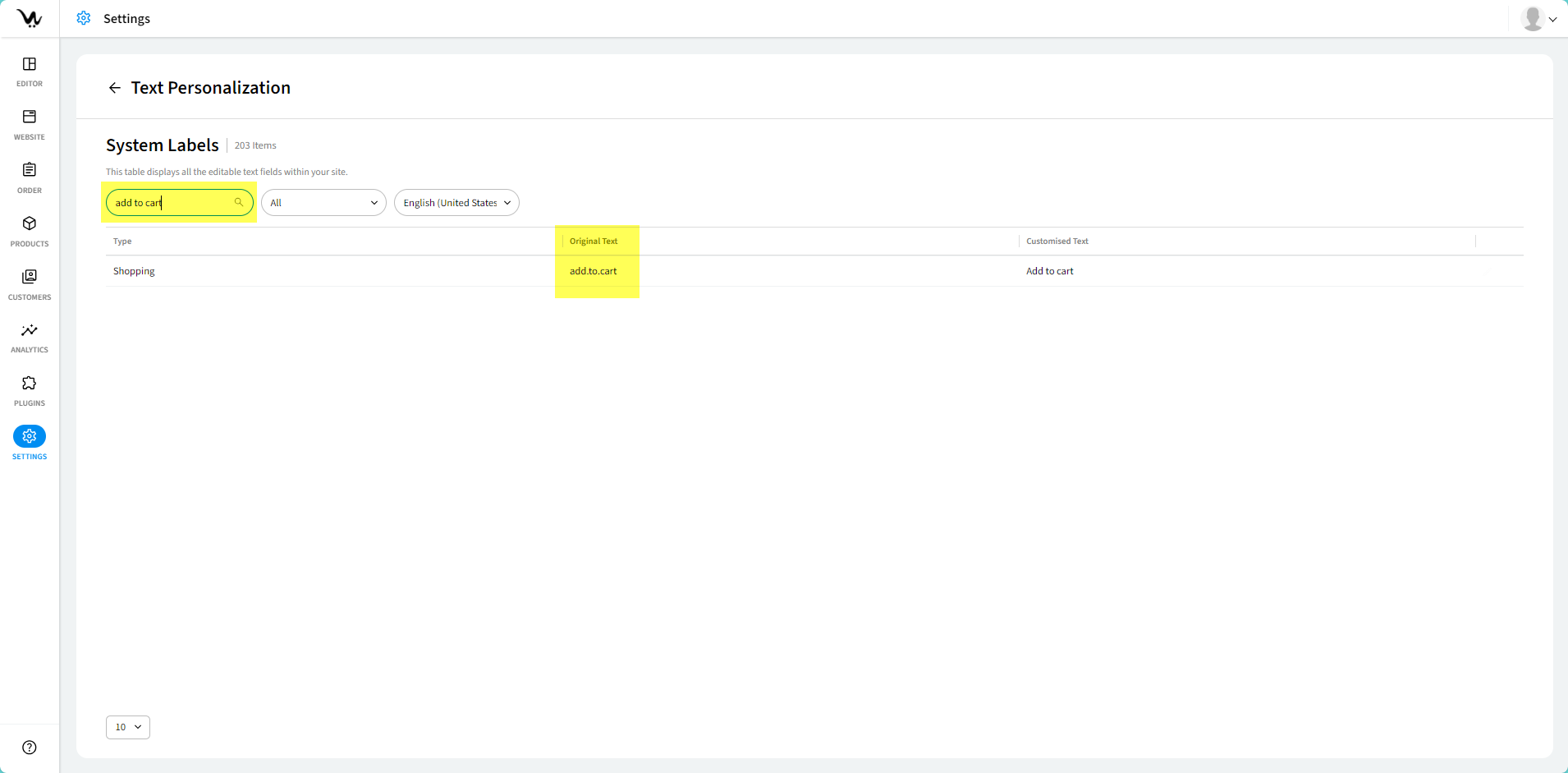
To review the original, uncustomised text:
- After performing a search, locate the Original Text column in the search results.
- The original text will be displayed for reference alongside the customised versions.
Editing customised Text
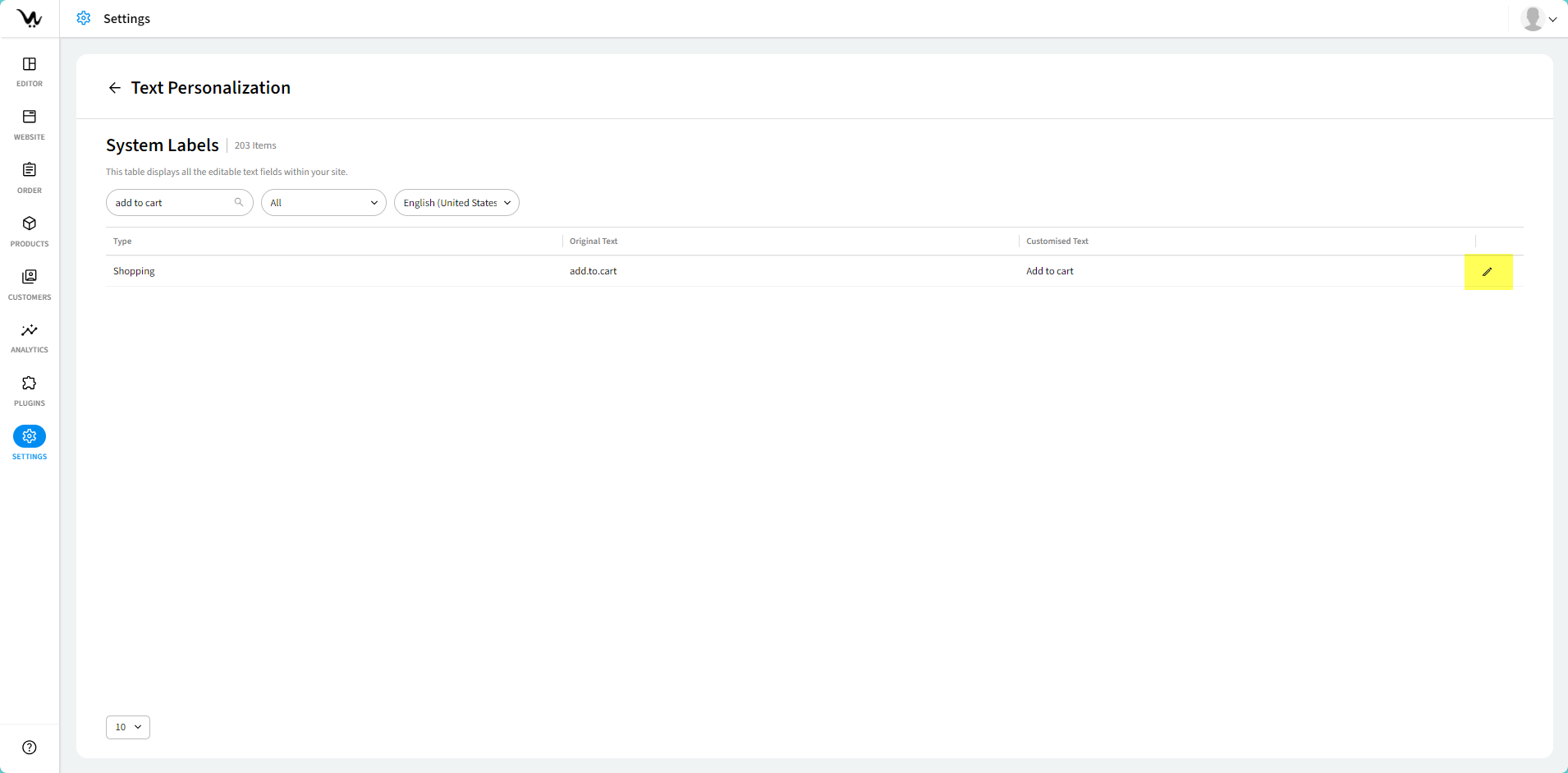
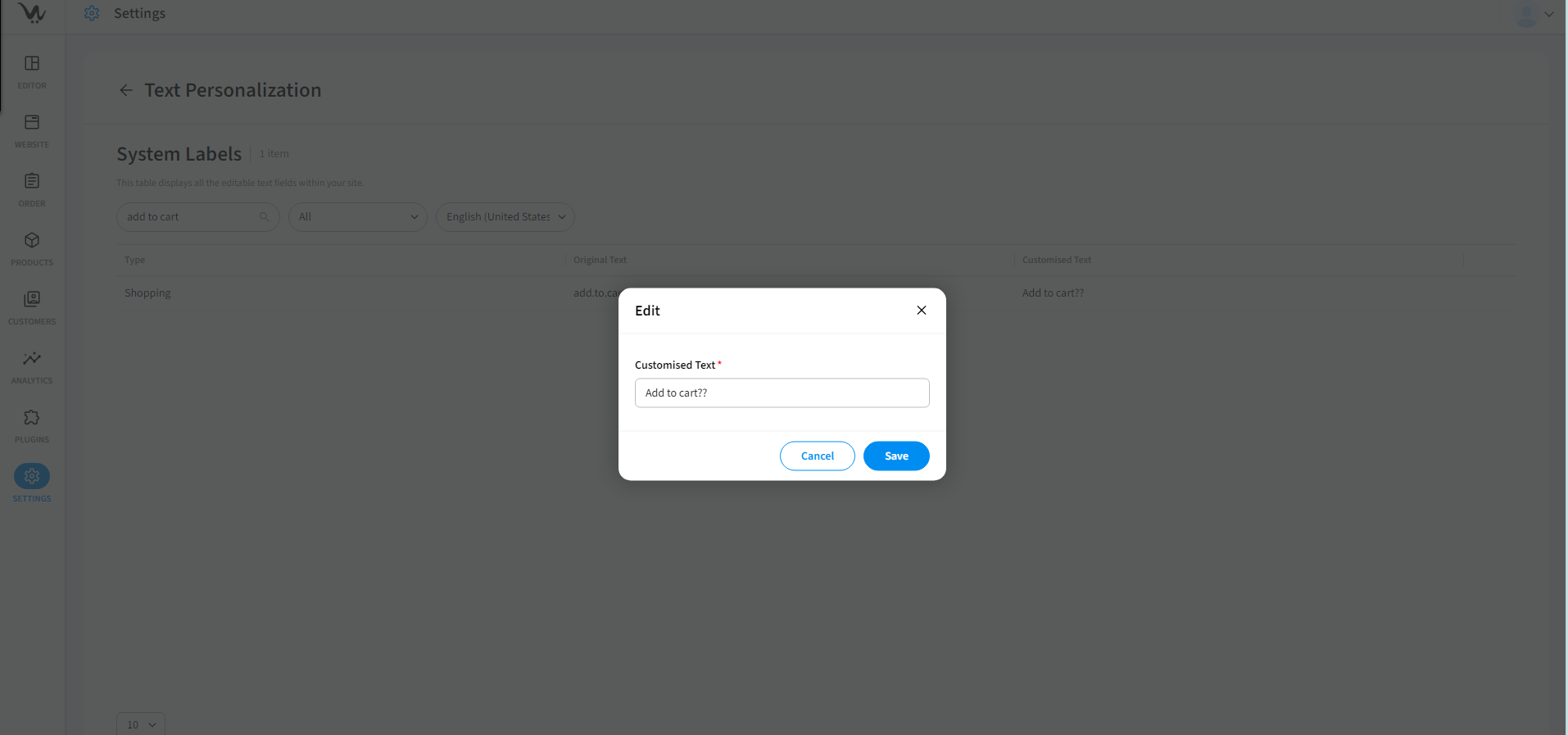
To modify and personalise the text:
- Click the Edit button in the customised Text column.
- Enter the new text in the provided input field (maximum of 250 characters).
- Once the new text is entered, click the Save button to apply the changes.
- The Save button will be disabled until the input is validated.
Character Limit and Formatting Rules
- customised text is limited to 250 characters.
- The Save button will remain disabled until the entered text meets the character limit and formatting rules.
Special Character Restrictions
- Only letters, numbers, hyphens (-), and underscores (_) are allowed in the customised text fields.
- Special characters outside these will not be accepted.
Undoing Changes
To undo changes made to the customised text:
- Clear the customised Text field.
- Click Save to revert to the original text.
Multiple Users and Coordination
- Multiple users can work on Text personalisation at the same time, but changes are saved independently.
- Coordination between users is recommended to avoid conflicts when modifying the same text.
Troubleshooting Tips
- "Save" Button Disabled: Ensure that the text meets the character limit and formatting rules before saving.
- customised Text Not Saving: Check that the text does not contain disallowed characters like special symbols.
- Undoing Changes: If changes are not reverting, ensure you have cleared the customised text field and clicked Save.
