
Category Page Settings
This guide will walk you through the "Category Page" settings of your store, explaining how to configure global category-related options. This section allows you to control how products are displayed, managed, and sold in each category on your website.
Access Your Category Page Settings:
- Log in to your website.
- Navigate to Settings from the left menu.
- Select Page Settings.
- Click on Category Page to begin configuration.
Category Page Configuration
This section controls the core elements of your category pages.
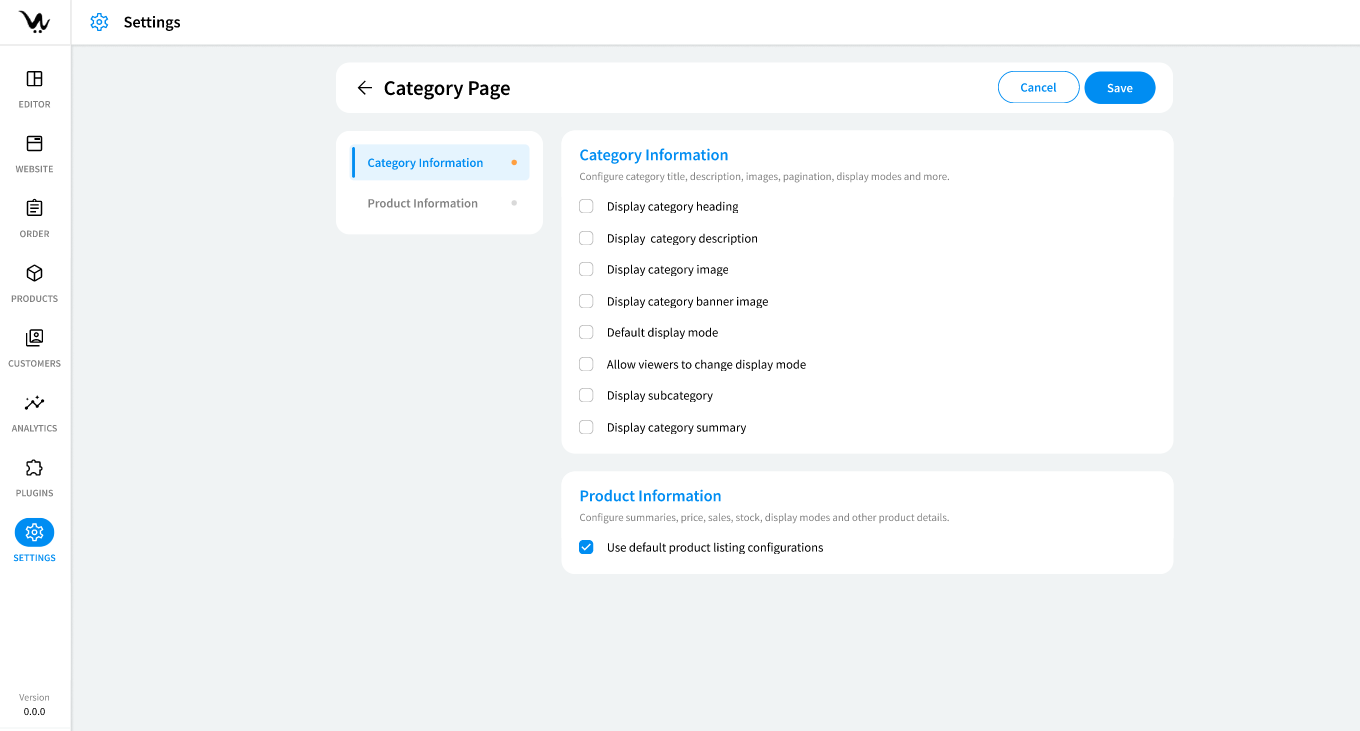
Category Information
This section controls the core elements of your category page settings.
-
Category Heading: Displays the category title on the page.
- Enable the "Display category heading" option to show the category title.
-
Category Description: Allows the display of a description under the category heading.
- Enable the "Display category description" option.
-
Category Image: Adds an image to the top of the category page for visual enhancement.
- Enable the "Display category image" option and upload an image.
-
Category Banner Image: Adds a banner image to the category page for marketing or branding purposes.
- Enable the "Display category banner image" option and upload the banner image.
- Default Display Mode: Determines the default display mode for the category page.
- Choose from Grid, List, or Table as the default display mode for products.
-
Allow Viewers to Change Display Mode: Allows customers to switch between grid, list, or table view on the category page.
- Enable the "Allow viewers to change display mode" option.
-
Display Subcategory: Displays subcategories within the selected category.
- Enable the "Display subcategory" option.
-
Display Subcategory Summary: Displays a brief summary or description of the category at the top of the page.
- Enable the "Display category summary" option.
Product Information
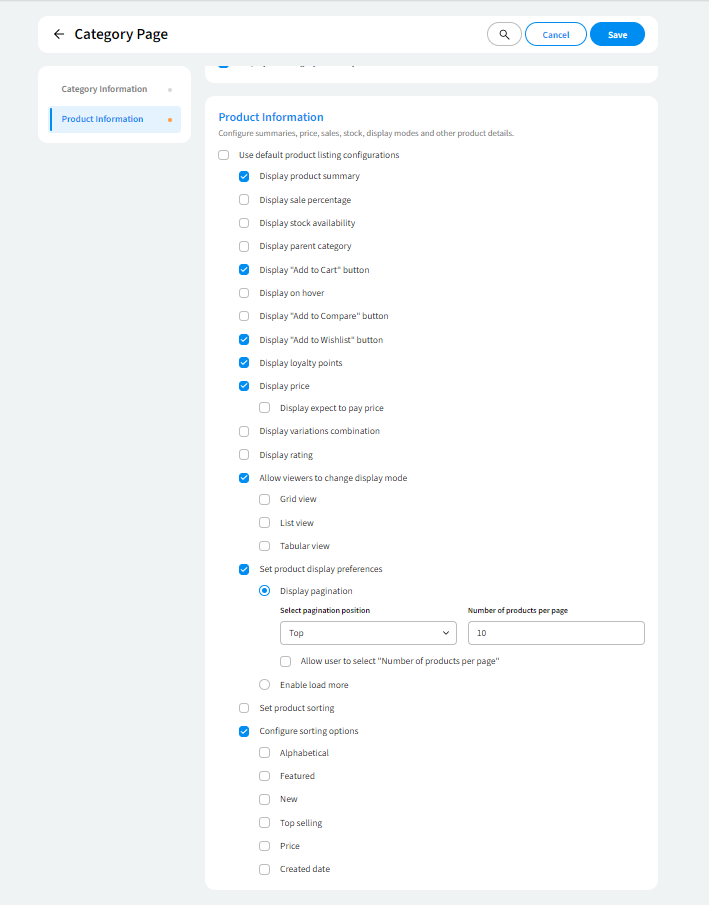
This section explains how product information is displayed on category pages.
-
Product Summary: Displays a short product summary under each product.
- Enable the "Display product summary" option.
-
Sale Percentage: Displays the sale percentage for discounted products.
- Enable the "Display sale percentage" option.
-
Stock Availability: Displays the stock availability for products.
- Enable the "Display stock availability" option.
-
Add to Cart Button: Enables the "Add to Cart" button for each product on the category page.
- Enable or disable the "Add to Cart" button.
- Configure the button behavior to appear on hover or always visible.
-
Loyalty Points: Displays loyalty points available for each product. This feature requires the Loyalty Point plugin.
- Enable the "Display loyalty points" option.
-
Product Variation Combination: Displays product variations such as color and size.
- Enable the "Display variation combination" option.
- Display on Hover: Display additional product information when a customer hovers over a product image.
- Enable the "Display on hover" option.
- Add to Compare Button: Allows customers to add products to a comparison list.
- Enable the "Add to Compare" button on the category page.
- Add to Wishlist Button: Allows customers to save products for later purchase.
- Enable the "Add to Wishlist" button.
- Display Price: Displays the product price on the category page.
- Enable the "Display price" option.
- Display Rating: Displays product ratings based on customer reviews.
- Enable the "Display rating" option.
- Set Product Display Preferences: Allows you to define preferences for how products are displayed on the category page (e.g., sorting, product display mode).
- Configure options for sorting, display mode, and preferences for how customers view products.
- Sorting and Pagination
This section explains how to configure sorting options and pagination for your category pages.
-
Set Product Sorting: Allows you to set the default sorting criteria for products.
- Use the "Set product sorting" option to choose criteria like Alphabetical, Price, Creation Date, Featured, New, or Top Selling.
-
Allow Users to Select Number of Products per Page: Allows customers to choose how many products they want to view per page.
- Enable the "Allow users to select the number of products per page" option.
-
Pagination Position: Controls where pagination appears on the category page.
- Choose a position for pagination: None, Top, Bottom, or Top & Bottom.
-
Load More: Adds a "Load More" button for infinite scrolling on category pages.
- Enable the "Load More" option.
Troubleshooting Your Category Page Settings
- Settings are not visible on the front end.
Solution: Ensure that the required plugins are installed and enabled. -
Pagination not working.
Solution: Verify that the pagination position is correctly selected in the backend settings. -
Variations are not displaying.
Solution: Ensure that product variations (e.g., Color, Size) are defined for each product. -
Load More is not functional.
Solution: Verify that the "Load More" feature is enabled and that the required scripts are loaded.
By systematically working through these troubleshooting steps, you can identify and resolve most common issues related to your category page settings.
